Getting Started With Develocity for Python
|
The Develocity Python agent is in Beta. Python support isn’t enabled by default. To enable it, contact Gradle. |
Installation
Develocity server installation isn’t covered here. Consult one of the following installation manuals for help with installation:
The examples in this guide use develocity.example.com as the Develocity hostname with HTTPS enabled.
Develocity Python Agent
To use Build Scan, you must apply the Develocity Python agent to your project.
Setup
The Develocity Python agent is a Python package, but it isn’t publicly available on PyPI. To install it in your virtual environment, you can use the command line below.
pip install https://develocity-python-pkgs.gradle.com/develocity_agent-0.10-py3-none-any.whlAlternatively, you can add the Develocity Python agent directly in your requirements.txt file (or equivalent):
https://develocity-python-pkgs.gradle.com/develocity_agent-0.10-py3-none-any.whl|
To instrument Poetry runs, you can add the Develocity Python agent to Poetry’s own environment with the following command: Note that this won’t instrument the tools executed by Poetry, only the Poetry commands themselves. To instrument the tools executed by Poetry, install the Develocity Python agent in your |
|
Python support needs to be enabled in your license to use the Develocity Python agent. Contact Gradle to enable Python support. |
After installing the agent, you can use it in your Python runs.
Publishing a Build Scan to Develocity at gradle.com isn’t supported. The minimum configuration required is the Develocity server URL.
The agent is configured through a file named .develocity.py which should be located at root of your Python project.
The configuration file must define a function called develocity_configuration which takes as parameter the current configuration and returns the updated configuration.
Following is an example of minimal configuration:
def develocity_configuration(configuration):
    configuration.develocity_url = 'https://develocity.example.com'
    return configuration
To publish to a Develocity instance that requires authentication, configure an access key. See Authenticating With Develocity in the Python agent user manual.
Build Scan
A Build Scan is a record of each supported Python tool run, captured and published to your Develocity instance. Each Build Scan includes a console log and a searchable history across all runs; pytest runs also include test results.
Quick Start
Build Scan publication is automatically enabled for all supported tool runs when you apply the Develocity Python agent. As the build completes, the last lines of output will be similar to:
....
Publishing Build Scan to Develocity...
https://develocity.example.com/s/3z475bz247h5g
....
Follow that link to view your Build Scan.
Build Scan publication is passive with regard to the build process: it doesn’t affect the outcome or outputs of your build. It’s safe to add the necessary configuration to your project and check it into version control, enabling Build Scan publication for all users of the build. The Develocity Python agent won’t cause build failures even when there is no connection to the Develocity server when trying to publish.
Find and View Any Build Scan
Search through all captured Build Scan records by going to https://develocity.example.com/scans.
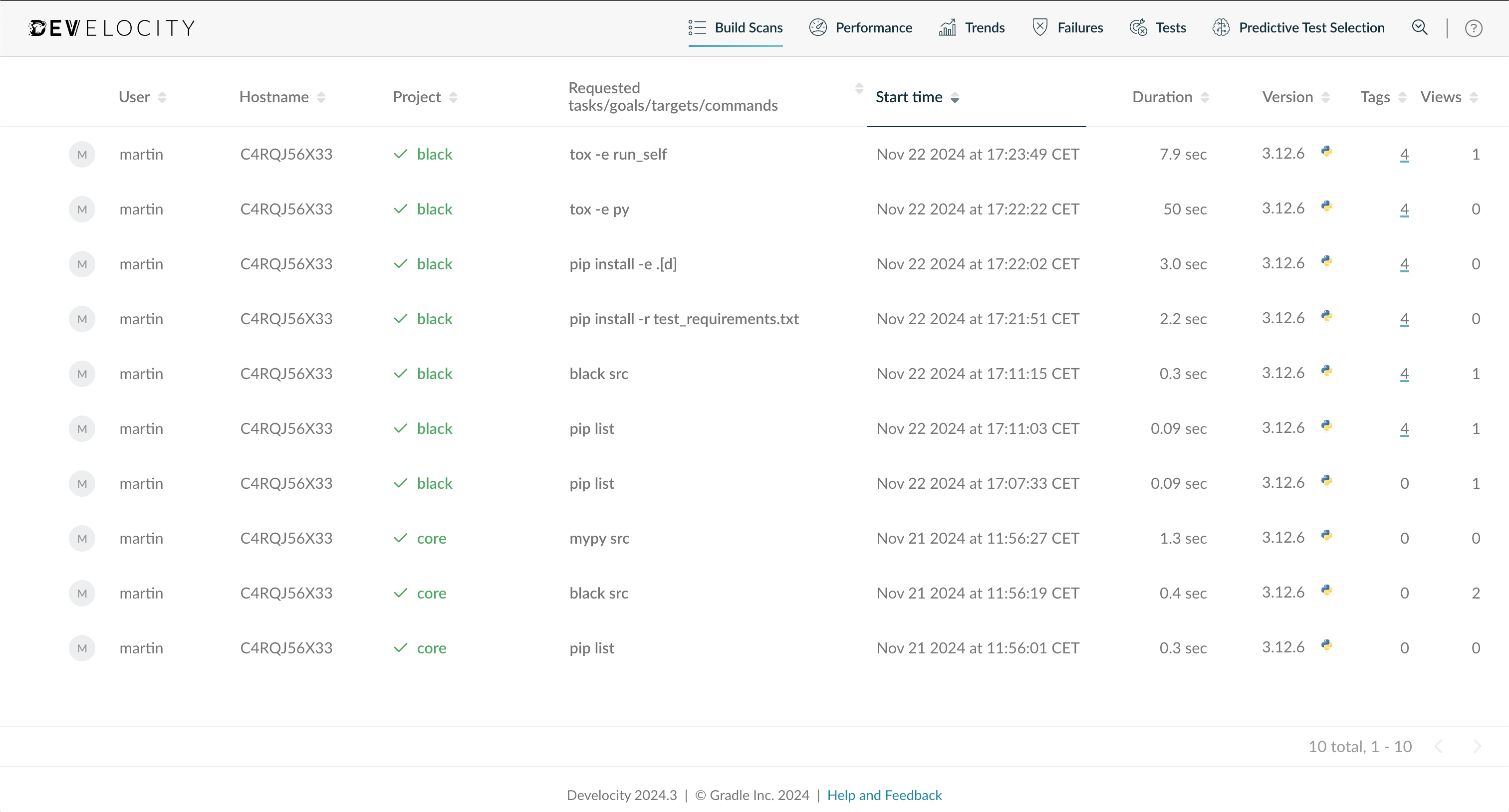
Search by project name, username, build outcome, start time, and more. By default, the list shows the most recent scans first.
The listing can also surface insights you didn’t know to look for:
-
Recurring failures across your organization’s tool runs
-
Tool invocations taking longer than expected in certain cases
-
Users running more tool invocations than necessary, adding avoidable build time
Inspect Console Log
The console log is included in your Build Scan.
Use the left navigation menu to visit the Console Log section.
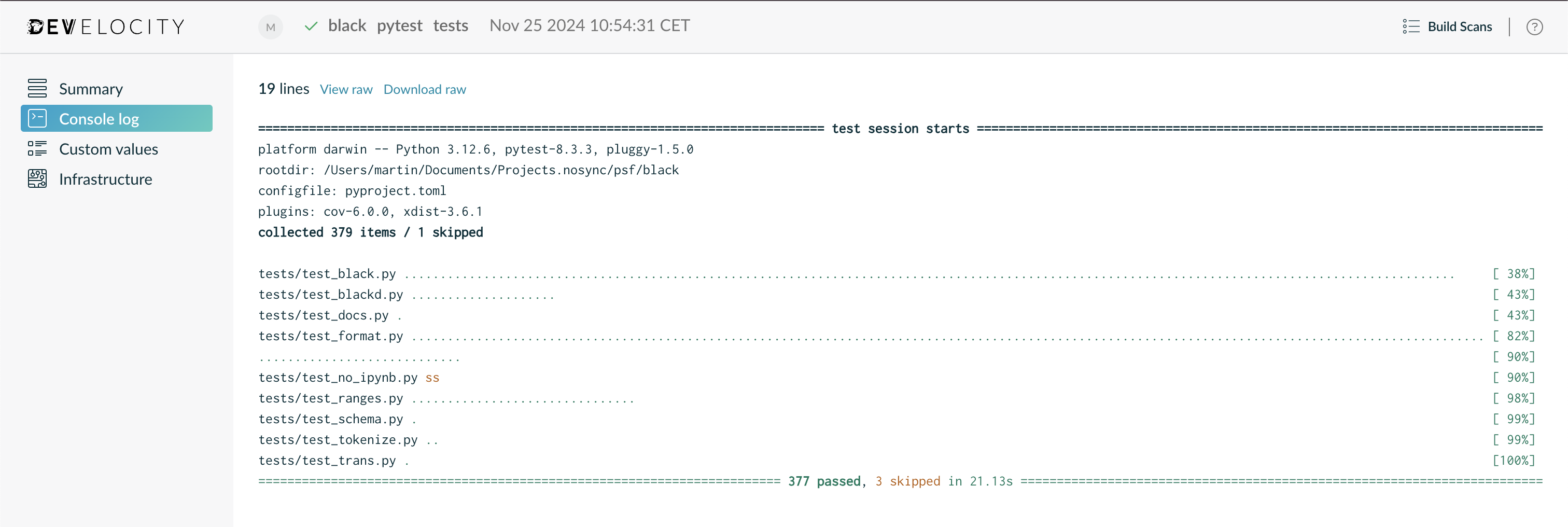
This section displays all the console log emitted by the Python run, except the logs produced by processes forked from Python.
Inspect Test Results
If your build ran pytest tests, their results are included in your Build Scan.
Use the left navigation menu to visit the Tests section.
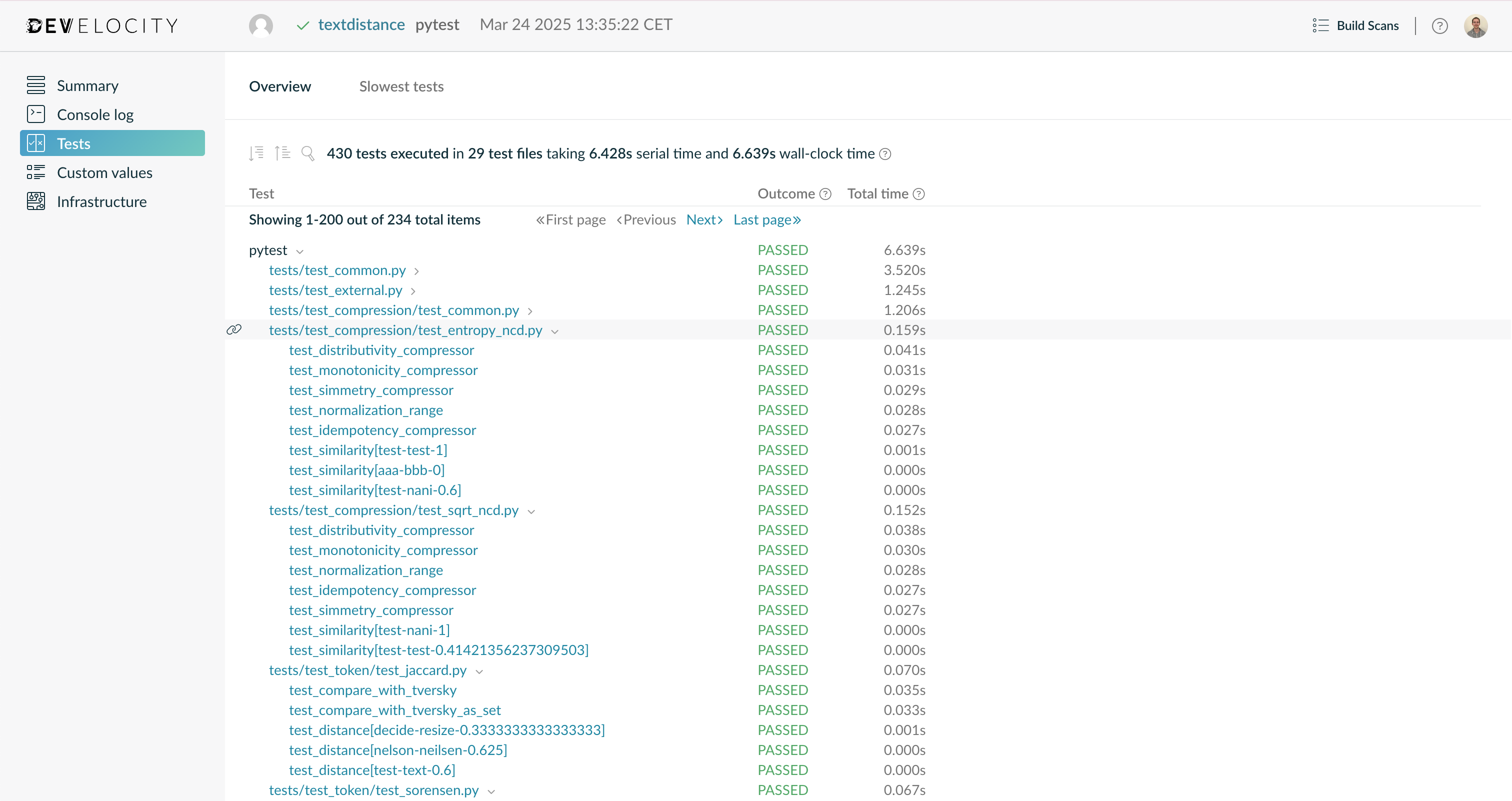
This section shows the results of all the tests that ran during your build, along with their outcome and durations. The results are broken down by process, test file and test case. Select any test file or test case to see details about each of their individual executions, in case of test retry. The total time is available for processes, test files and test cases. Generally, it corresponds to the wall clock time that an execution lasted. See Viewing Test Results in the Python agent user manual for details.
Custom Tags, Values, and Links
Each Build Scan can be enriched with custom metadata: see Extending Build Scan in the Python agent user manual for the available options. In particular:
-
VCS information such as commit identifiers and branch names
-
Tags for different types of builds (for example,
CIvs.local) -
Links to the corresponding CI pipeline run
What’s Next
-
To integrate Python invocations in Gradle builds, see Gradle integration in the Develocity Python agent user manual.
-
For the full configuration reference, see the Develocity Python agent user manual.