---
component: bazel
version: ""
slug: bazel/index
canonical_url: "https://docs.gradle.com/develocity/bazel/"
title: "Getting Started With Develocity for Bazel Users"
description: "A guide for Bazel users to get started with Develocity"
keywords: []
status: current
---
# Getting Started With Develocity for Bazel Users
This guide covers how to get started with Develocity, with topics such as strategies for incrementally introducing Build Scan® usage and key Build Scan features for improving your development productivity.
Develocity provides two complementary functions: [Build Scan](#build_scan) and the [Build Cache](https://docs.gradle.com/develocity/bazel/bazel-config/#remote-cache). A Build Scan is a permanent and shareable record of an executed build that allows collaborative troubleshooting and optimization. The Build Cache makes builds faster by allowing reuse of the outputs of builds.
## Installation
This guide doesn’t cover installation of Develocity. Consult one of the following installation manuals for help with installation:
* [Self-Hosted Kubernetes Installation Guide](https://docs.gradle.com/develocity/2026.1/installation/kubernetes-installation/)
* [Self-Hosted Standalone Installation Guide](https://docs.gradle.com/develocity/2026.1/installation/standalone-installation/)
* [Amazon EKS Kubernetes Installation Guide](https://docs.gradle.com/develocity/2026.1/installation/aws/aws-eks-cluster/)
* [Amazon EC2 Standalone Installation Guide](https://docs.gradle.com/develocity/2026.1/installation/aws/aws-ec2-standalone/)
* [Azure AKS Kubernetes Installation Guide](https://docs.gradle.com/develocity/2026.1/installation/azure/azure-aks-cluster/)
* [Azure VM Standalone Installation Guide](https://docs.gradle.com/develocity/2026.1/installation/azure/azure-vm-standalone/)
* [Google GKE Kubernetes Installation Guide](https://docs.gradle.com/develocity/2026.1/installation/google-cloud/gke-kubernetes/)
* [Google Compute Engine Standalone Installation Guide](https://docs.gradle.com/develocity/2026.1/installation/google-cloud/gce-standalone/)
The remainder of this guide will assume that your installation has a public hostname of `develocity.example.com` and has enabled HTTPS.
## Quickstart
To get the most out of this guide, we recommend trying it out for yourself. If you don’t have a project that you can easily use to this end, consider using the [quickstart project](https://github.com/gradle/bazel-develocity-quickstart/).
## Build Scan
Build Scans are a significant innovation in software build tooling. Having centralized and shareable records providing fine-grained details and insights of all builds, including local development builds, enables new levels of collaborative debugging and optimization.
### Configuring Bazel
Follow the instruction in the [Bazel configuration Guide](https://docs.gradle.com/develocity/bazel/bazel-config/) to modify your project’s `.bazelrc` file to use with Develocity.
At a minimum, unauthenticated Build Scans require the following configuration in your `.bazelrc` file:
```shell
common:develocity --remote_cache=grpcs://develocity.example.com
common:develocity --bes_results_url=https://develocity.example.com/build/
common:develocity --bes_backend=grpcs://develocity.example.com
build --config=develocity
```
Given the above configuration, you can now run your build as usual. As the build completes, the last lines of the output will be similar to:
```
INFO: Streaming build results to: https://develocity.example.com/build/f26e14c5-dfab-4725-8a77-648f4f8a0ff9
```
The last portion of the URL is the Bazel invocation ID. Follow that link to view your Build Scan.
Additional information about configuring Bazel to use Develocity’s authentication keys, use the Develocity remote cache, and set project names for project-level access control is available in the [Bazel configuration guide](https://docs.gradle.com/develocity/bazel/bazel-config/).
### Build Scan Highlights
* [Find and view any Build Scan](#find_and_view_any_build_scan)
* [Share console logs](#share_console_logs)
* [Inspect test results](#inspect_test_results)
* [Analyze build performance](#analyze_build_performance)
#### Find and View Any Build Scan
Search through all the captured Build Scans by going to `https://develocity.example.com/scans`.
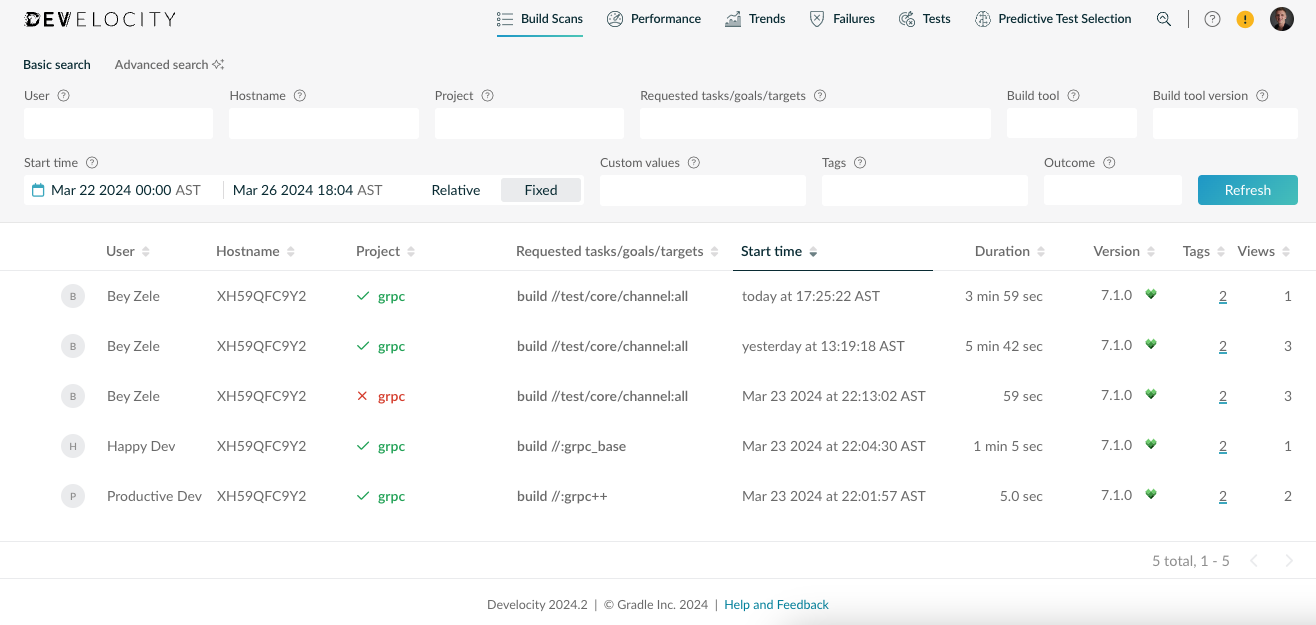
Example of a Build Scan Overview Page
This view allows searching by various criteria, including top-level project name, user name, build outcome, build start time and more. By default, the list is sorted to show the most recent scans first.
Beyond looking for a particular Build Scan, the listing can provide new insights into the actual builds being run at your organization and by your colleagues. You may find occurrences of previously unknown errors with your build, or that the build is taking longer in certain cases than you expected, or that certain build users are executing more commands than they need to and are therefore subjecting themselves to excessive build times, and other previously unknown behaviors.
#### Share Console Logs
Build Scans include the console output produced by the build. Many tools used by the build, such as compilers, often write diagnostic information to the console log.
Use the left navigation menu to visit the **Console log** section.
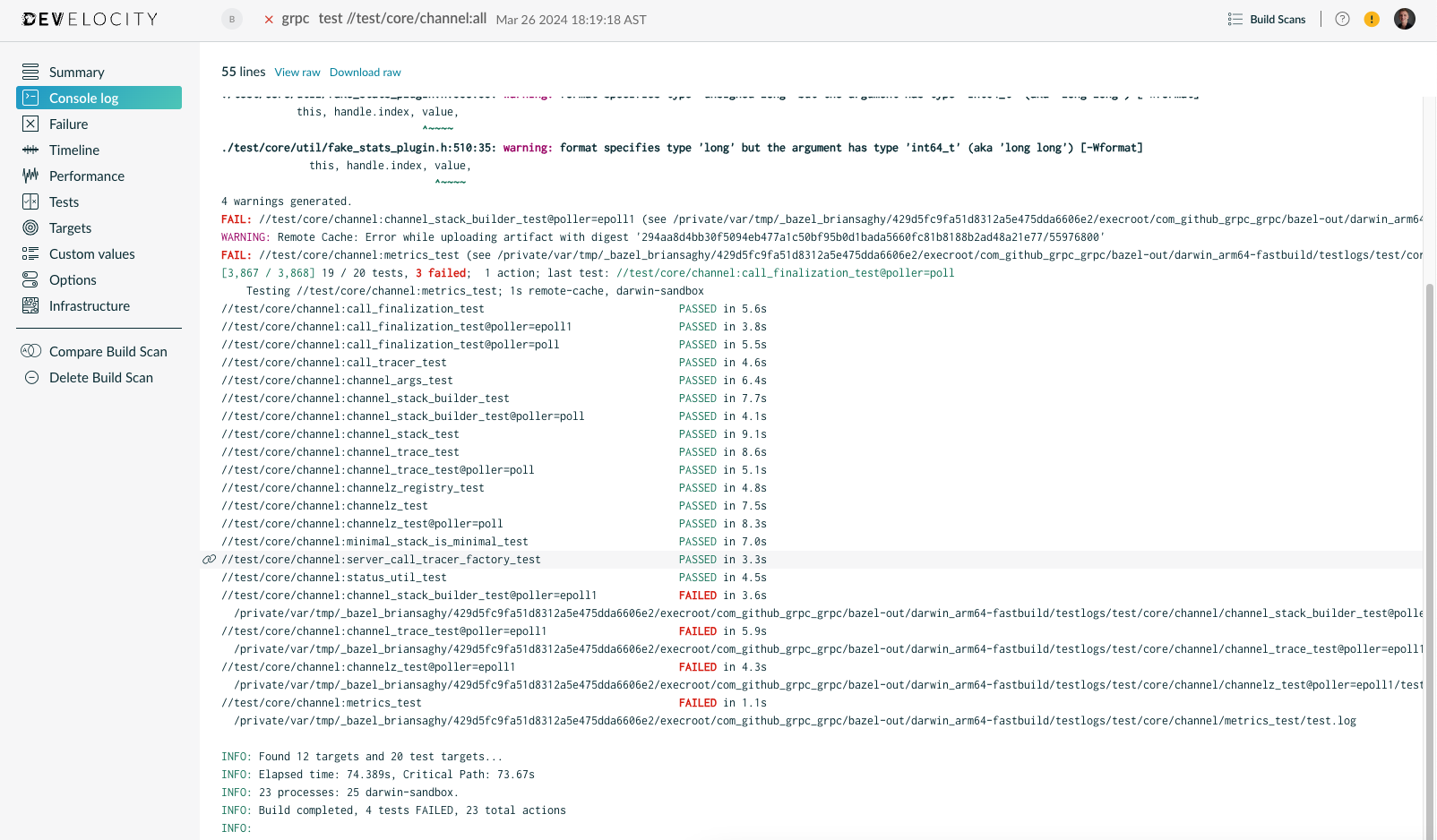
Example of a Console Log View
Click on any line to highlight it or shift-click two different lines to highlight a block of lines. Note that the browser’s current location has been updated. By sharing that URL with a colleague, you can direct them to the exact console output that you want them to see. Many aspects of Build Scans are directly linkable to facilitate sharing and collaboration.
#### Inspect Test Results
If your build executed tests, then their results will be included in your Build Scan. Use the left navigation menu to visit the **Tests** view.
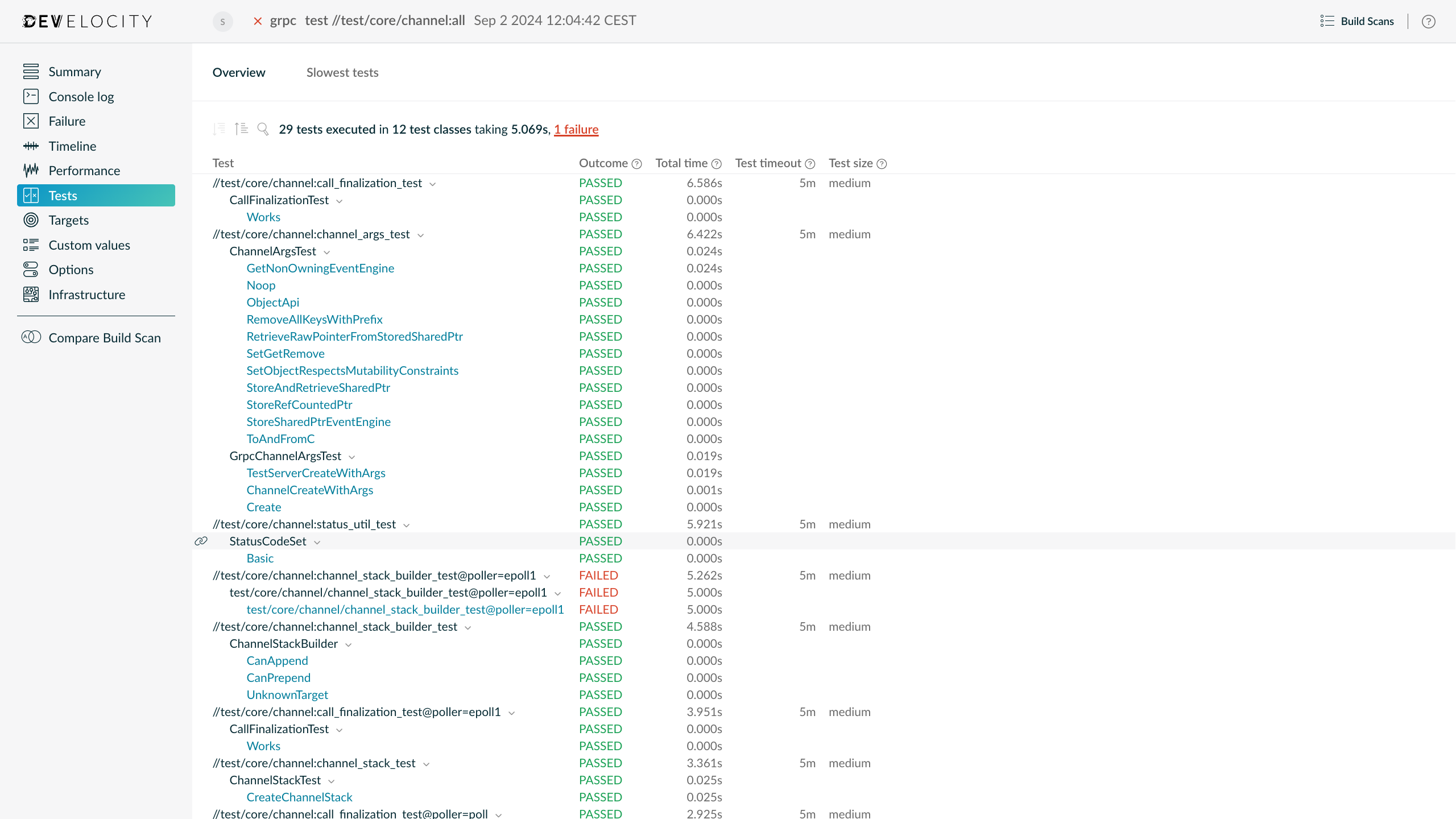
Example of a Tests View
This section shows the results of all the tests that ran during your build, along with their _outcome_, _total time_, _test timeout_ and _test size_. The _total time_ generally corresponds to the wall clock time that an execution lasted. The results are broken down by _target_, _test suite_ and _test case_. Select any _test case_ to see details about each of its individual executions, in case of test retry.
You can also single out the slowest _test cases_. Use the top navigation tab to visit the **Slowest Tests** view.
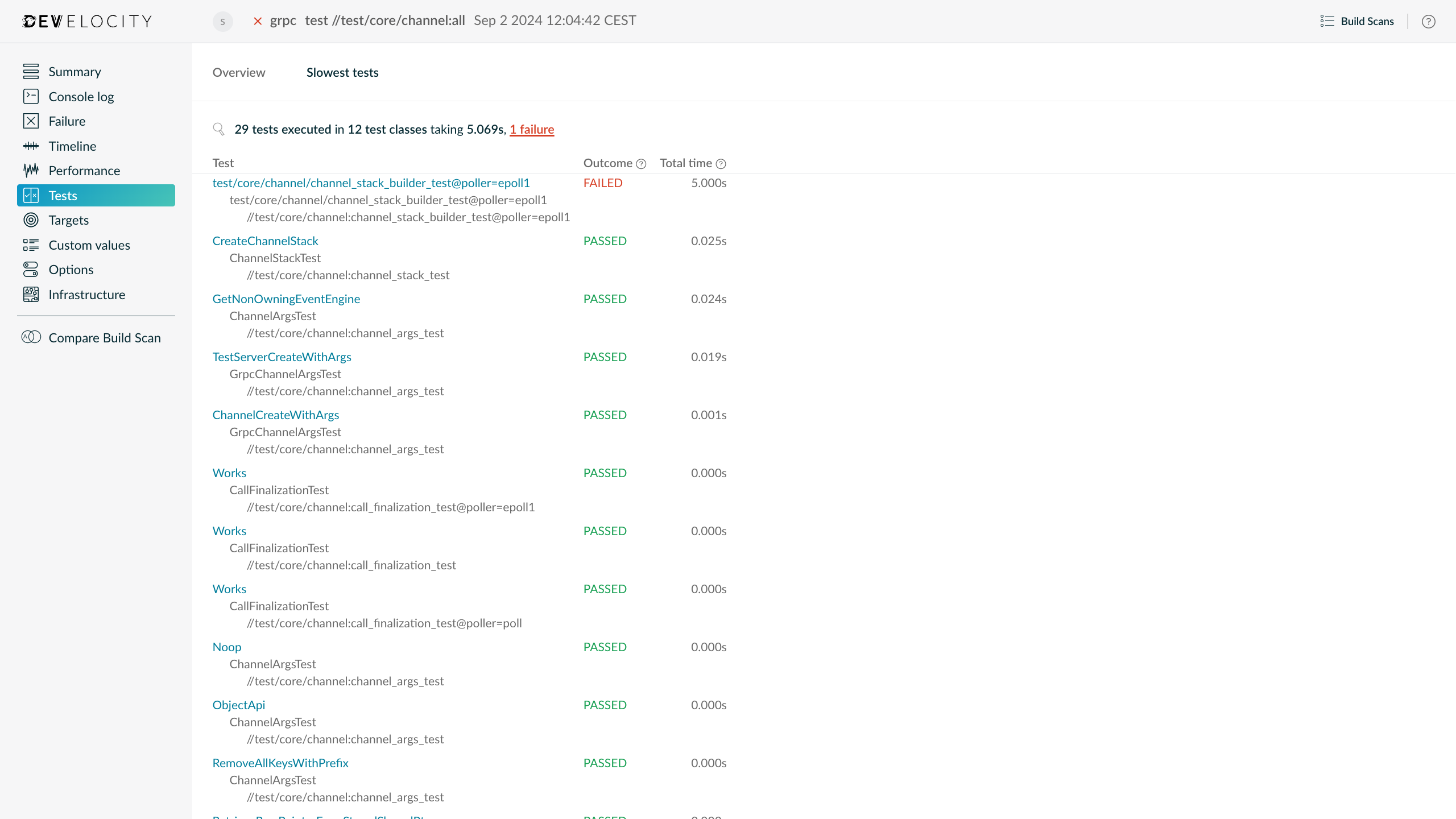
Example of a Slowest Tests View
This section shows the individual slowest _test cases_ in your build. Sorted by their _total time_. Note that _test timeout_ and _test size_ aren’t available in this view because they’re properties of _test targets_ rather than _test cases_.
> [!NOTE]
> By default, Bazel test reporting is at a target-level granularity. However, Bazel enables rules to override this behavior (e.g. the built-in Java rules provide a detailed test report). If you don’t see test reporting at a test-case-level granularity, please check that the Bazel rules you are using produce the required `test.xml` to override the default behavior. Refer to the [Bazel documentation](https://bazel.build/reference/test-encyclopedia#initial-conditions) for more details.
#### Analyze Build Performance
A key benefit of Build Scans are the various insights they provide into build performance. Many builds provide different functions for different people and will perform differently on different machines. Having deep performance insights available for every build enables optimizing all corners of the build, for all users.
Use the left navigation menu to visit the **Timeline** view.
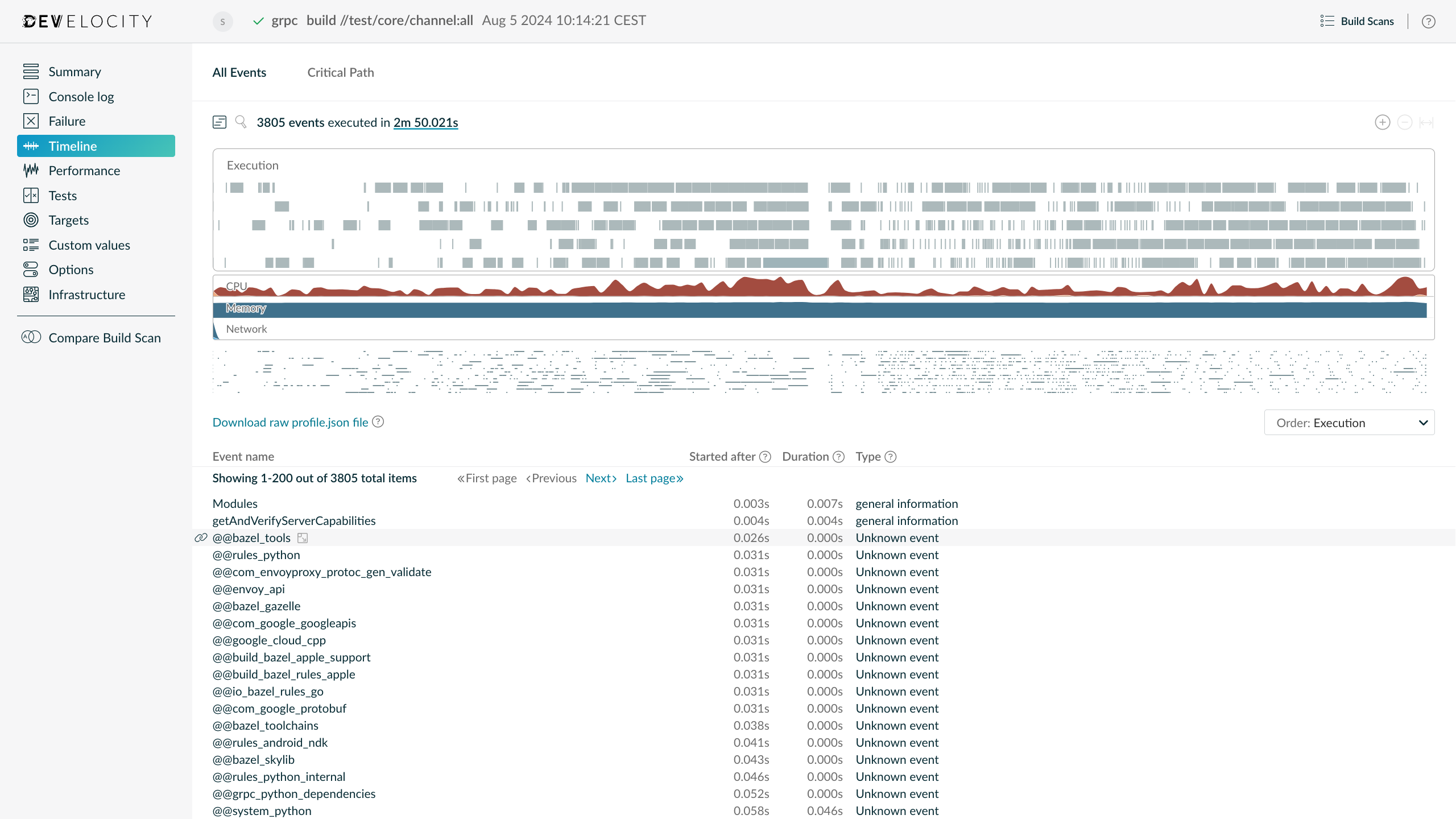
Example of a Timeline View
This section provides insights into the event executions, visualizing them as a timeline, alongside resource usage (CPU, memory, and network usage) for the Bazel process and the system as a whole. This representation clearly shows the parallel utilization of your build.
It also shows several graphs about resource usage (CPU, memory and network traffic).
The table below the graph provides a concise breakdown of the events executed during the build. The table provides more detail on individual events (click the  icon when hovering over an event) and can be used to understand dependencies between events.
The **Critical Path** tab shows the longest chain of dependent actions with regard to execution time. It’s an estimation of the shortest possible build time if infinite compute resources were available, and all non-dependent actions were executed in parallel.
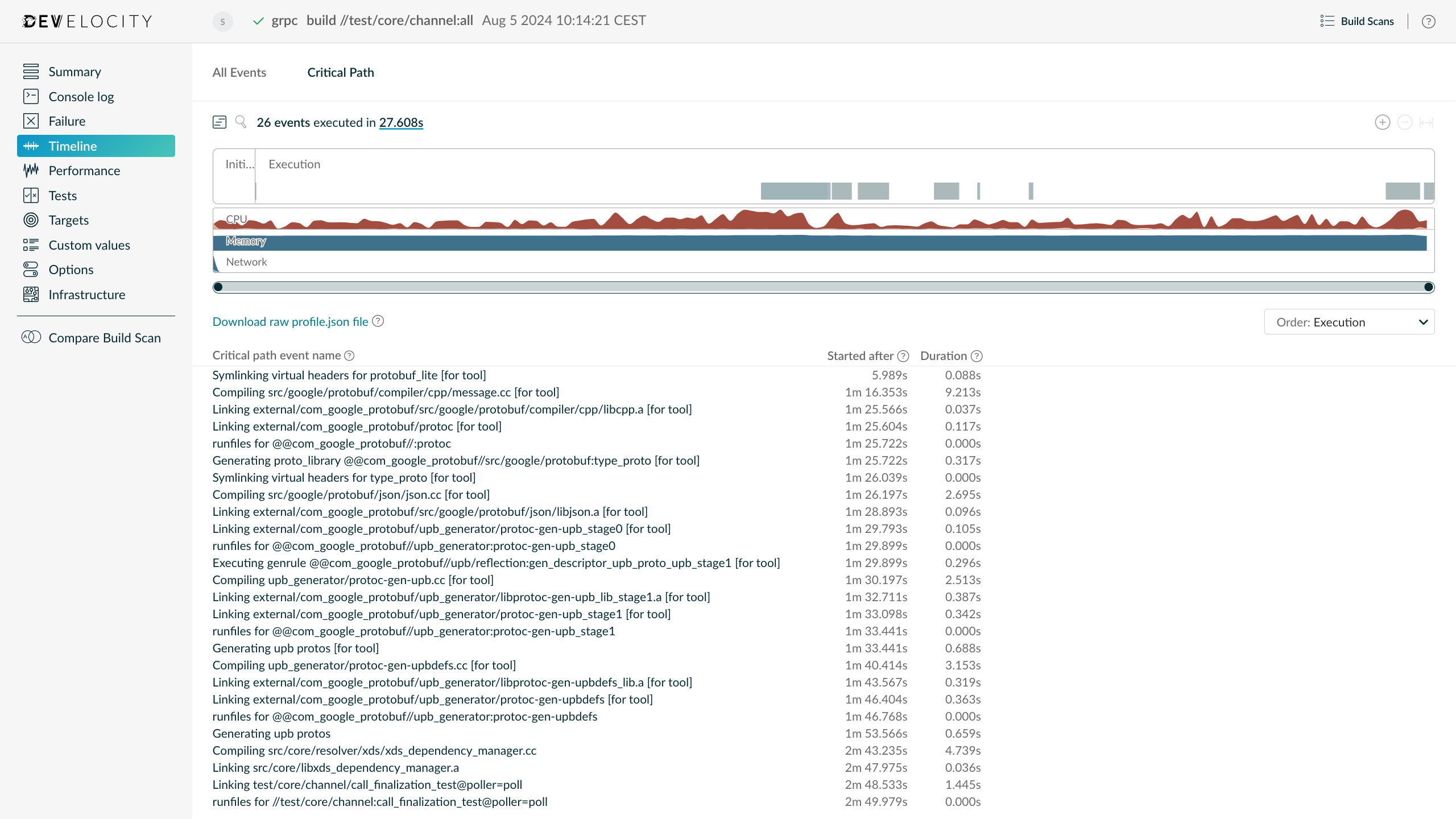
Example of a Critical Path View
### Next Steps
#### Custom Tags, Values and Links
Build Scans can be enriched with metadata particular to your environment by [several means](https://docs.gradle.com/develocity/bazel/bazel-config/#extending-build-scans). Extending your Build Scans with tags, values and links is strongly recommended. In particular:
* VCS information such as commit identifiers, branch names, etc.
* Tags for different types of builds (e.g. `CI` vs. `local`)
* Links to CI system record of build for CI builds
This adds useful context to your Build Scans, and allows you to search and filter based on this metadata.
### Integrating Your CI Tool
Build Scans are passive with regard to the build process. That’s, enabling Build Scans doesn’t affect the outputs of your build. It’s generally safe to simply add the necessary configuration to your projects to enable sending Build Scans to your Develocity installation and check it in to version control, enabling it for all users of the build.
However, it’s important to note that with Bazel, there is the potential that connectivity errors to Develocity could cause the Bazel command to return a non-zero exit code, potentially impacting the outcome of the build. If there is no connection available when Bazel tries to publish to the Develocity Build Event Server, Bazel will exit with code 38 and display a message similar to the following:
```
INFO: Build completed successfully, 1 total action
ERROR: The Build Event Protocol upload failed: All 4 retry attempts failed. UNAVAILABLE: develocity.example.com UNAVAILABLE: develocity.example.com
```
At the time of this writing, the Bazel client doesn’t yet offer a configuration option to fail gracefully in these instances.
## Getting Help or Asking Questions
If you are currently using Develocity as part of your trial sign-up or license purchase, you received instructions on how to access the priority Develocity support channel. If you have any issues with or questions about Develocity, please raise a support request.
Alternatively, or if you aren’t yet using Develocity, you can use the [Gradle discussion forum](https://discuss.gradle.org/c/help-discuss/14) if you are able to discuss your issue publicly. If you are unable to discuss your issue publicly, please use our [contact form](https://gradle.com/contact/).
## Keeping Up to Date
Develocity is constantly evolving with regular updates that add new features and capabilities. The monthly [Gradle newsletter](https://newsletter.gradle.org/) is an easy way to stay informed about new releases, features and events.